Shopify guides 14 min readPublished
Shopify INP: how to measure and improve responsiveness
Shopify INP measures how fast a store responds to taps and clicks. What degrades it (apps, tags, the theme) and how to measure and fix it, in order.

Contents7 sections
Shopify INP is the time a store takes to show a visible response after a shopper taps, clicks or types: Google rates it good at 200 milliseconds or less. On Shopify, a poor INP almost always comes from JavaScript, loaded by apps, marketing tags or the theme itself. You improve it by measuring real visits first, then removing scripts before optimising the ones you keep.
Key takeaways
INP (Interaction to Next Paint) became a Core Web Vital on 12 March 2024, replacing First Input Delay.
Thresholds: good at 200 ms or less, needs improvement up to 500 ms, poor beyond, measured at the 75th percentile of real visits.
Causes on Shopify: app scripts, marketing tags and theme code competing for the browser's main thread.
Measure in the field first (Search Console, PageSpeed Insights, Shopify's web performance reports), then diagnose in the lab.
Fix in order: inventory, remove, defer, break up long tasks, lighten rendering, check after each release.
A store can render its page in a second and still feel slow: the shopper taps "Add to cart" and nothing moves for a moment. This guide is for brands and teams who run a Shopify store and want to understand that delay, find its cause and fix it. The figures come from Google's and Shopify's own documentation, consulted on 7 November 2026. Responsiveness is one of the technical workstreams of our Shopify SEO service.
What is INP?
Interaction to Next Paint (INP) is a Core Web Vital that measures how long a page takes to paint the next frame after a user interaction. It observes real interactions: a mouse click, a tap on a touchscreen, a key press. Hovering, zooming and scrolling are not counted. The value retained for a page is close to the slowest interaction of the visit, so INP describes the worst moment a shopper lives through, not the average one.
One interaction, three phases
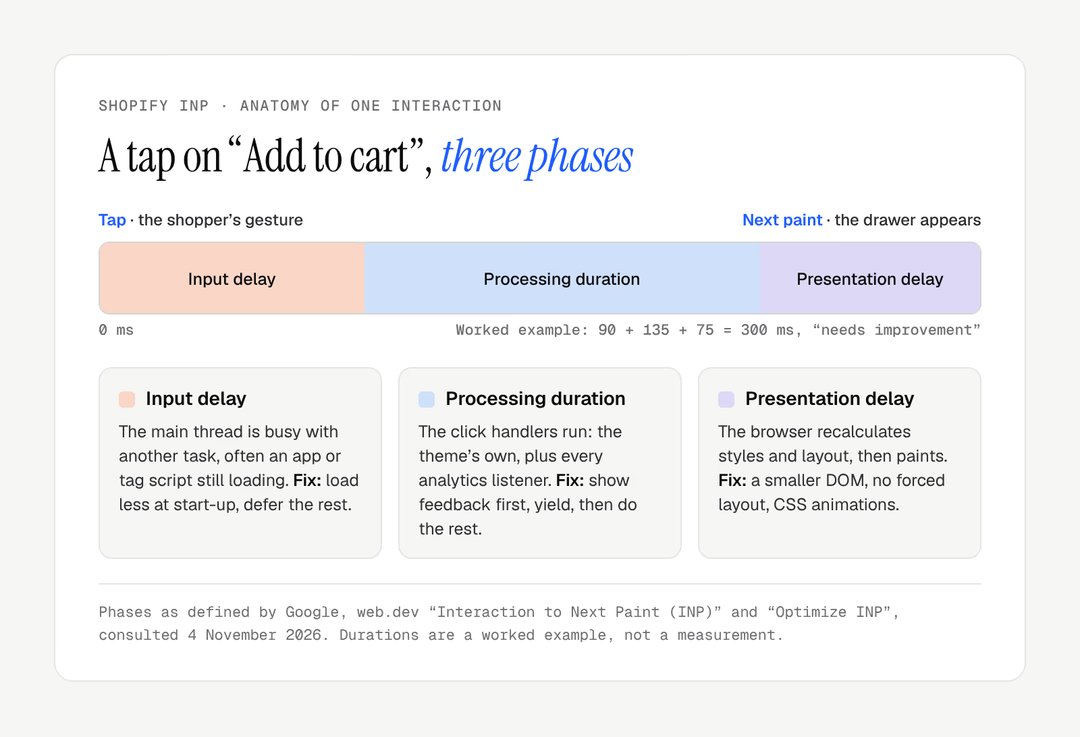
For each interaction, Google's documentation distinguishes three phases:
input delay, between the gesture and the start of processing, when the browser is busy elsewhere;
processing duration, the time taken to run the code that responds to the event;
presentation delay, between the end of that code and the next frame appearing on screen.
Take a tap on "Add to cart". If a reviews script is running at that moment, input delay grows. If the button's handler recalculates the whole cart before showing anything, processing duration grows. If opening the cart drawer forces the browser to recalculate the layout of the entire page, presentation delay grows.
The thresholds
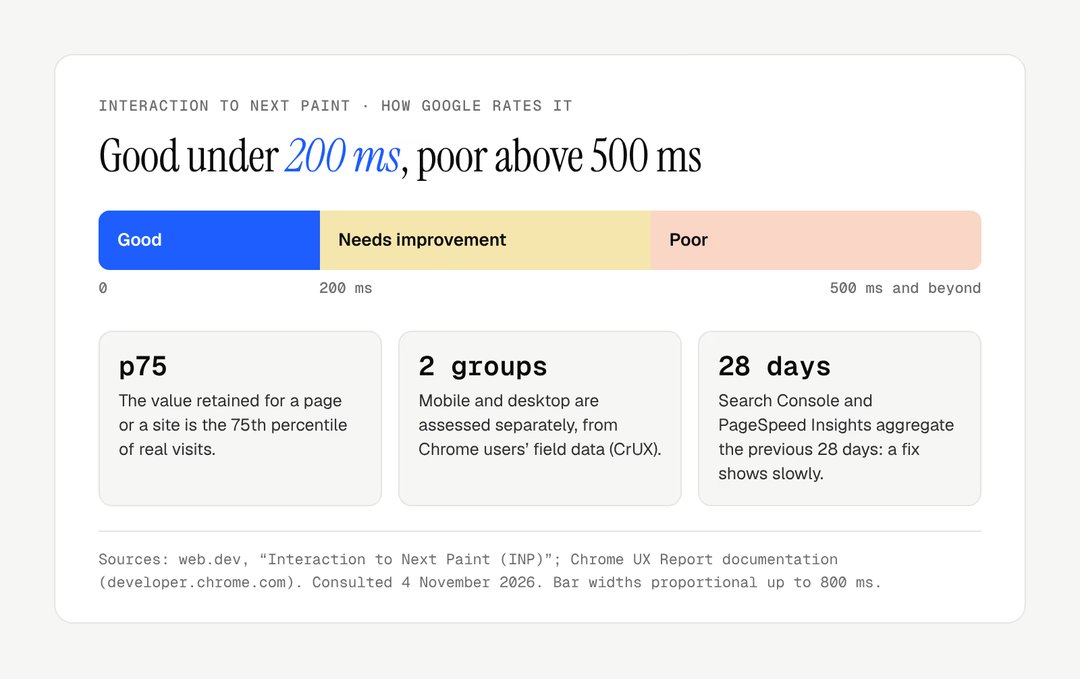
Google rates INP good at 200 milliseconds or less, needs improvement up to 500 milliseconds, and poor beyond that (web.dev, consulted 7 November 2026). The value retained for a page is the 75th percentile of visits, with mobile and desktop assessed separately. For each visit, the slowest interaction usually counts, with Google ignoring one of the worst interactions for every fifty to filter out accidents.
In other words, INP does not measure your average interaction. It measures what one visitor in four experiences, at the worst moment of their visit.
Band | INP at the 75th percentile | What a shopper feels |
|---|---|---|
Good | 200 ms or less | The button reacts as soon as it is tapped |
Needs improvement | 201 to 500 ms | A noticeable pause before anything moves |
Poor | More than 500 ms | A second tap, or the feeling the store is broken |
Why it replaced FID
INP replaced First Input Delay as a Core Web Vital on 12 March 2024. FID measured only the input delay of the very first interaction. A page could score a good FID and then respond very slowly to every variant selection. INP covers the whole visit and the full duration of each interaction, which makes it far more demanding.
Most sites now pass on desktop and struggle more on mobile. The performance chapter of the HTTP Archive's 2025 Web Almanac, published in January 2026, reports good INP for 77% of mobile websites (74% in 2024) and 97% of desktop websites. A store's shoppers are mostly on phones, so mobile is the figure to watch.

How much it weighs in search
Google highly recommends achieving good Core Web Vitals and says they align with what its core ranking systems seek to reward. They are not the main criterion: a slow, relevant page will outrank a fast, empty one. But when relevance is equal, and above all for a shopper hesitating over a purchase, a store that responds instantly makes a difference.
What degrades INP on a Shopify store
On a Shopify store, INP degrades mainly because too much JavaScript competes for the browser's main thread. Shopify's documentation is explicit: too much JavaScript, loaded at the wrong time or written inefficiently, is one of the primary causes of poor INP. That JavaScript comes from three sources: apps, marketing tags and the theme.
JavaScript loaded at start-up
During loading, the browser runs scripts on a single main thread. Any task lasting more than 50 milliseconds is a long task (web.dev), and while it runs, a shopper's tap waits. This is why interactions in the first few seconds are often the slowest: the shopper opens the menu while a dozen scripts are still being parsed and executed.
Apps
A Shopify store accumulates apps, and each one can load its script on every page, including pages where it displays nothing. Shopify describes three ways an app can integrate with a theme: app blocks, app embeds and code added directly to the theme. App embeds can be switched off in the theme editor, which lets you measure their effect one by one. Code injected into theme files has no such switch: it stays until someone removes it, and in our experience uninstalling an app does not always clean it up.
Marketing tags and Shopify third-party scripts
Ad pixels, analytics tools, heatmaps, A/B testing: these third-party scripts often listen to every click on the page in order to record it, and that work adds to the processing duration of each interaction. Shopify lets you install them as web pixels rather than in the theme's code. Pixels supplied by apps then run in a strict sandbox (a web worker), and custom pixels in a sandboxed iframe.
The cookie banner deserves a separate mention. When a shopper accepts, every authorised script can start at the same instant, and the next tap lands on a saturated main thread.
The theme itself
Shopify makes the point: badly written first-party code is just as damaging as a poorly implemented third-party script. The most frequent causes:
a variant selection that re-renders and reinjects the whole product section, gallery included;
a mega menu with several hundred links present in the DOM of every page;
collection pages with 48 cards, each with swatches, a second image and a quick-buy button;
scroll animations calculated in JavaScript, which read element positions right after changing them and force the browser to recalculate layout;
a carousel library loaded on every page for a single banner.
A theme built for the brand can avoid most of these from the start. We compare the two approaches in our article on custom versus premium Shopify themes. The components themselves, and how many variants of each a theme carries, are a design decision covered in our guide to the ecommerce design system.
Interactions to check first
Interaction | Frequent cause | First thing to try |
|---|---|---|
Opening the mobile menu | Menu built in JavaScript on open, very heavy DOM | Menu present in the HTML, opened with CSS |
Choosing a variant | Full section re-render, gallery reloaded | Update price and availability first, the rest afterwards |
Adding to cart | Chained requests before any visual feedback | Open the cart immediately with a loading state |
Opening a filter | Recalculation of the whole grid | Show the panel, filter in a following task |
Typing in search | A request and a render on every keystroke | Wait for a short pause in typing before searching |
Closing the cookie banner | Every authorised script loading at the same instant | Stagger their loading after the banner closes |
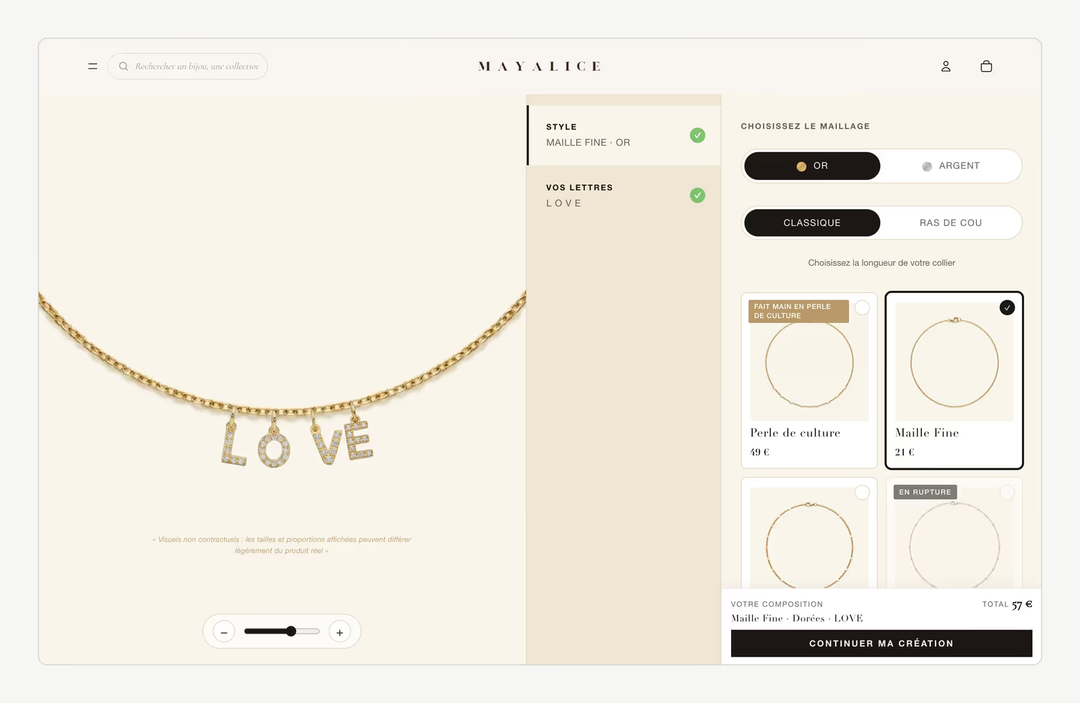
Configurators are a special case, because every click on an option updates a preview. Our guide to the Shopify product configurator explains how to keep that preview responsive.
How to measure Shopify INP in the field
Measure Shopify INP in the field first, because INP depends on your visitors' devices, their gestures and whatever is loading at that moment. Lab tools help you reproduce a problem, not discover it. Four tools cover most needs, and all of them are free.
Tool | Data | What it tells you | Limit |
|---|---|---|---|
Search Console, Core Web Vitals report | Field (CrUX), 28 days | Which groups of URLs are good, need improvement or are poor | Groups of pages, not individual buttons |
PageSpeed Insights | Field at the top, lab below | INP of a page and of the origin, when traffic is sufficient | The lab test never clicks, so it shows no INP |
Shopify web performance reports | Field, from the store's visits | INP over time, by page type and URL | Viewing requires the Reports staff permission |
web-vitals library, attribution build | Field, your own collection | The element interacted with and the split between the three phases | Requires adding a script and somewhere to send the data |
The Core Web Vitals report in Search Console
The Core Web Vitals report in Search Console groups your URLs by similar behaviour, separates mobile and desktop, and rates each group as good, needs improvement or poor. It relies on real data from Chrome users (CrUX), aggregated over the previous 28 days, so a fix takes several weeks to show in full.
PageSpeed Insights
PageSpeed Insights shows field data for the page and the origin at the top, when traffic is sufficient, and a lab test underneath. Do not confuse the two: the lab test loads the page without interacting with it, so it does not measure INP. Google notes that Total Blocking Time can serve as a rough proxy, without replacing it.
Shopify's web performance reports
Shopify provides web performance reports in the admin, under Analytics > Reports, that track LCP, INP and CLS over time, at the 75th percentile by default, with breakdowns by page URL and page type and a device filter. Their value is in linking a regression to a date, and therefore to an app installation or a theme publication.
Find the guilty interaction
The reports tell you which page is slow, not which button. To find out:
Collect attribution data in the field. Google's web-vitals library, in its attribution build, reports for each INP the element interacted with and the split between the three phases. Send this data to your analytics tool.
Identify the scripts responsible. Chrome's Long Animation Frames API attributes slow frames to the scripts that caused them, with their URL. This is how you tell the theme apart from an app.
Reproduce in the lab. In Chrome's Performance panel, throttle the CPU to simulate a mid-range phone, record, and repeat the interaction while the page is loading, when the main thread is busiest.
How to improve INP on Shopify, step by step
To improve INP on Shopify, remove scripts before you optimise them, then make each interaction show its feedback first. The order matters: optimising a script you could have deleted is wasted work. Work on a duplicate of the published theme, and publish one change at a time so that each effect stays measurable.
1. Take an inventory
List every script loaded, its origin (theme, app, tag) and the pages where it is actually needed. Chrome's Network tab and Coverage tool show what is downloaded and what is actually executed. A spreadsheet with one line per script, its owner and its purpose is enough.
2. Remove before you optimise
The fastest script is the one you do not load. Uninstall apps you no longer use and search the theme for code they left behind. Remove duplicates: two analytics tools, two review apps, a pixel installed both in the theme and in Customer events. Restrict each app to the templates where it appears.
3. Defer what is not urgent
Shopify recommends using defer on non-critical scripts and importing modules on interaction, with a dynamic import() inside the event listener, rather than at page load. A chat bubble can be a simple image until someone clicks it. A size guide does not need its script until it is opened.
4. Break up long tasks
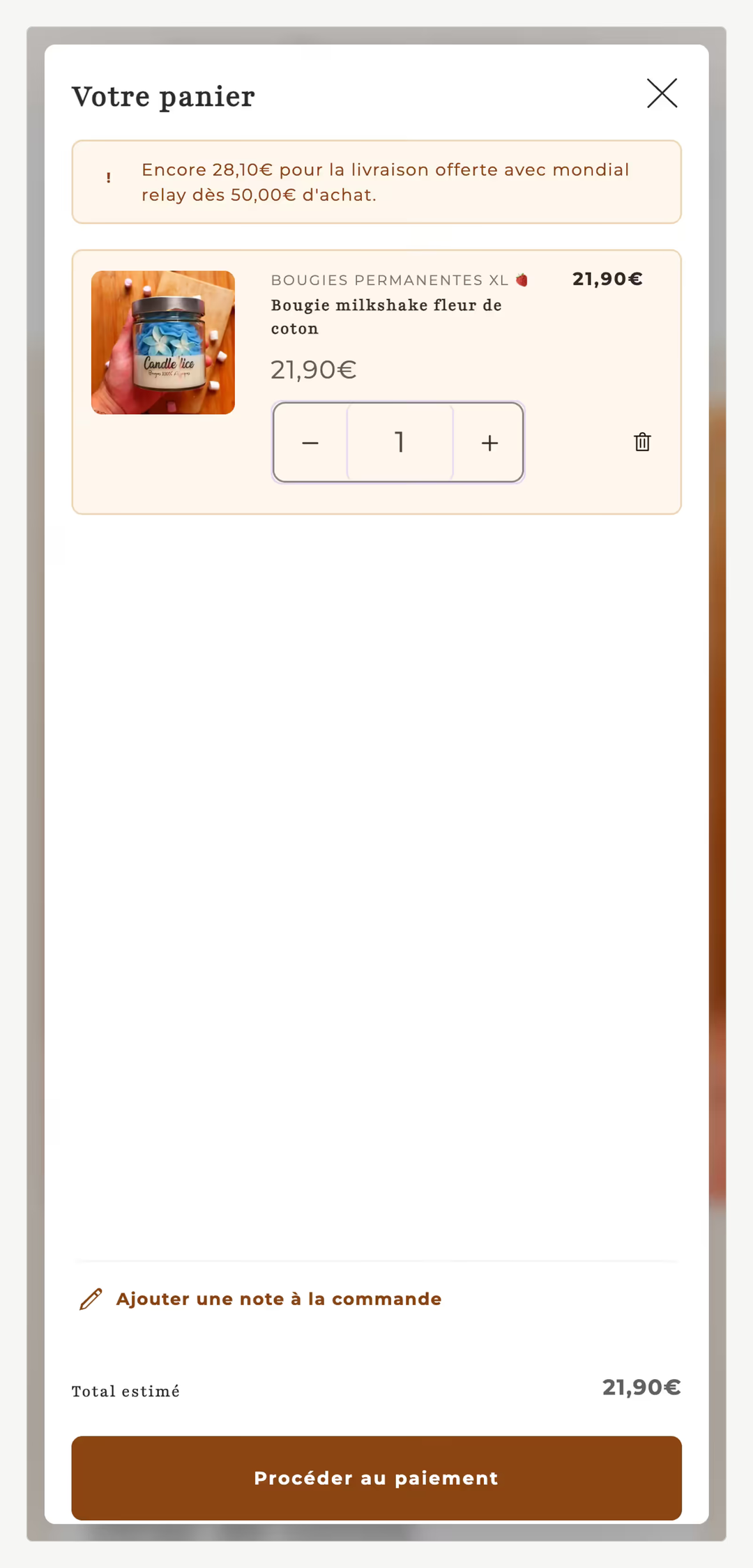
When a click has to trigger a lot of work, show the visual feedback first, then yield to the browser before carrying on. Google details the method in its guide to optimising long tasks. scheduler.yield() lets you give up the main thread and resume with priority afterwards; web.dev lists it in Chrome, Edge and Firefox but not Safari, hence a fallback to setTimeout.
// Yield to the browser between two steps
const yieldToMain = () =>
  globalThis.scheduler?.yield
    ? scheduler.yield()
    : new Promise((resolve) => setTimeout(resolve, 0));

button.addEventListener('click', async () => {
  cartDrawer.open({ loading: true }); // immediate visual feedback
  await yieldToMain();
  const contents = await addToCart(form); // /cart/add.js
  cartDrawer.render(contents);
  await yieldToMain();
  analytics.send('add_to_cart'); // what the shopper cannot see, last
});
The principle holds for any event handler: what the shopper needs to see comes first, and everything else waits for the next task.
5. Lighten rendering
Presentation delay depends mainly on the size of the DOM and on layout recalculations. Google's guidance on optimising INP recommends keeping the DOM small, avoiding reading a dimension right after changing a style, and using the CSS content-visibility property to defer rendering of off-screen areas. On a store, that means menus that do not contain the whole catalogue, paginated grids rather than infinite ones, and animations handled by CSS.
6. Check after every release
Check each fix in the lab before publishing, then in the field over the following weeks. Note the date of every change: when the curve moves in Shopify's report or in Search Console, you will know why. A new app, a new section or a seasonal campaign goes through the same test before going live.
Common INP mistakes on Shopify
The most common INP mistake is judging responsiveness from a lab score. The others follow from the same habit of optimising what is easy to see rather than what the shopper feels.
Mistake | Effect | Correction |
|---|---|---|
Relying on the PageSpeed score | A good lab score hides a poor field INP | Read the field section and Search Console |
Optimising before removing | Hours spent on a script nobody needs | Inventory first, then uninstall and clean up |
Uninstalling an app without checking the theme | Its code keeps loading on every page | Search theme files for its snippets and assets |
Testing on a fast laptop | Interactions feel instant to the team only | Throttle the CPU and test on a mid-range phone |
Doing all the work before any feedback | The button seems dead for half a second | Show feedback, yield, then compute |
Publishing several changes at once | No way to tell which one moved the curve | One change per release, dated |
Treating INP as a one-off project | Each new app brings the problem back | Test every addition before it goes live |
A migration is a good moment to start clean, since apps and theme code are chosen again. Our guide to Shopify migration and SEO covers what else to protect during that switch. Accessibility and responsiveness also share many fixes: a cart drawer that moves focus correctly and opens at once serves both, as our guide to the European Accessibility Act for ecommerce explains.
When the theme is the problem
If INP stays poor after apps and tags are cleaned up, the theme's own code is the cause, and the fix is a theme change. Signs include variant selections that reload the whole section, menus that ship the entire catalogue in every page, and JavaScript animations on scroll. Some of these can be corrected in place; others are structural and justify rebuilding the affected templates.
The decision depends on how much of the theme is involved. Fixing a cart drawer or a variant picker is a contained job. When the product page, the collection grid and the header all share the same heavy patterns, a Shopify redesign or a custom Shopify store built around the components the brand actually uses is often more durable than patching each one.
Is your INP in the red and you do not know where to start? A list of the scripts your store loads is often enough to find the first culprits. Our Shopify SEO page describes how we approach performance, and you can get in touch to discuss your store.
Frequently asked questions
My PageSpeed score is good, so why is my INP poor?
The PageSpeed score comes from a lab test that loads the page without ever clicking, so it does not measure INP. Your visitors tap buttons while scripts are still running, on phones slower than the test machine. Only field data, in Search Console, the field section of PageSpeed Insights or Shopify's web performance reports, reflects the INP your shoppers actually experience.
Do I need to remove all my apps to get a good INP?
No. Keep the apps that support sales and check what each one costs in responsiveness. Disable their app embeds one by one on a copy of the theme and measure the difference on key interactions such as the menu, variant choice and add to cart. Apps that cost a lot for little use go; the others are restricted to the pages where they appear.
How long before an INP fix shows up?
In the lab, straight away. In Search Console and PageSpeed Insights, field data is aggregated over a rolling 28 days, so a fix takes several weeks to be fully reflected in the reported INP. Shopify's web performance reports let you follow the change more closely over time, which helps confirm that a given release moved the curve.
Does a Theme Store theme guarantee a good INP?
No. Shopify requires Theme Store themes to reach a minimum average Lighthouse performance score of 60 across the home, product and collection pages, on desktop and mobile, measured on a development store loaded with standardised test products, according to its performance testing documentation. That test involves no interaction, so it does not measure INP. Your apps, content and catalogue size then change the result.
Is INP a ranking factor?
INP is one of the Core Web Vitals, which Google recommends meeting and which form part of what its ranking systems seek to reward. Relevance of content remains decisive. A good INP does not make up for a page with nothing to offer, but a poor INP penalises your visitors first, and therefore your conversion, before it matters for search.
What is a good INP score for a Shopify store?
A good INP is 200 milliseconds or less at the 75th percentile of visits, for mobile and desktop assessed separately. Between 200 and 500 milliseconds, Google rates it as needing improvement, and above 500 milliseconds as poor. For a Shopify store, aim for good on mobile first, since most shoppers browse and buy on their phones.
Should I fix INP before or after a redesign?
If a redesign is already planned, build responsiveness into it rather than patching the current theme. Set a target of good INP on mobile, limit apps to those that support sales, and test key interactions before launch. If no redesign is planned, start with the inventory of scripts: removing unused apps and tags often fixes the worst problems quickly.
Our work
Stores delivered by the studio
 Personalised jewelleryRedesign · ShopifyMayaliceA minimalist luxury redesign and six product configurators to compose a piece of jewellery live.
 Bath linenMigration and redesign · ShopifyMaison TrungadiBathrobes and bath linen made in Tuscany: a store that does justice to the materials.
 Handmade candlesMigration and redesign · ShopifyCandle’liceUnusual candles hand-poured in France, taken off a platform that held them back.